In today’s connected world, WhatsApp Web has become a must-have tool for professionals, students, and everyday users who want to continue their WhatsApp conversations directly from their computer. Whether you’re working, studying, or multitasking, WhatsApp Web helps you stay connected without constantly switching between your phone and PC. This guide explores everything you need to know about https://web.whatsapp.com/ — from setup and login to hidden features, benefits, and tips for efficient use.
What Is WhatsApp Web?. WhatsApp Web is the browser-based version of WhatsApp Messenger. It allows users to send and receive messages, photos, videos, voice notes, and documents from their desktop or laptop using any modern browser like Google Chrome, Microsoft Edge, or Safari. It mirrors your mobile WhatsApp app, meaning all your conversations appear instantly on your computer screen. The moment you send a message from your PC, it syncs across all your devices.
How to Use WhatsApp Web (Step-by-Step)
Using WhatsApp Web is incredibly simple. Here’s a quick guide:
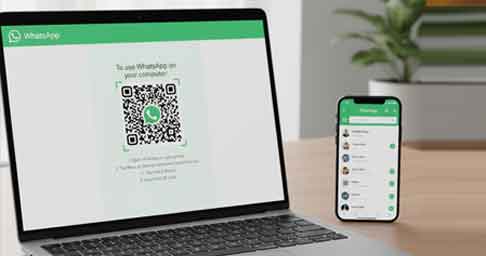
- Open the website: Visit https://web.whatsapp.com/.
- Launch WhatsApp on your phone: Go to Settings → Linked Devices → Link a Device.
- Scan the QR code displayed on your computer screen using your phone.
- You’re connected! Your chats will instantly appear on your computer screen.
💡 Tip: To stay logged in, check “Keep me signed in” before scanning the QR code.
Why Use WhatsApp Web?
Here are a few reasons why millions of users love WhatsApp Web:
- Convenience: Respond to messages without picking up your phone.
- Productivity: Stay connected while working on your computer.
- Seamless Sync: Messages appear instantly on both mobile and desktop.
- Media Sharing: Share files, images, and documents quickly.
- Privacy Control: End-to-end encryption ensures your chats remain private.
Key Features & Benefits (2025 Update)
1. Real-Time Sync Between Devices
Messages, calls, and media shared on your phone instantly appear on your computer — no delay, no confusion. WhatsApp Web ensures your communication remains seamless and synchronized.
2. Quick File & Document Sharing
Forget emailing yourself files! Drag and drop images, PDFs, or videos directly into chats from your desktop. This saves time and helps maintain organized digital communication.
3. Multi-Device Support
With the new multi-device feature, you can use WhatsApp Web even when your phone is offline or switched off. Your data remains secure, and syncing happens automatically when you reconnect.
4. Secure End-to-End Encryption
WhatsApp Web ensures that all your messages, calls, and shared files are encrypted. This means only you and your recipient can see them — even WhatsApp can’t access your messages.
5. Voice & Video Calls
In 2025, WhatsApp Web supports voice and video calls directly from your browser. You can call your contacts with just one click, making it ideal for remote teams and personal communication alike.
Advanced WhatsApp Web Tips You Should Know
💬 Keyboard Shortcuts
- Ctrl + N: Start a new chat
- Ctrl + Shift + [: Previous chat
- Ctrl + Shift + ]: Next chat
- Ctrl + E: Archive chat
- Ctrl + Shift + M: Mute chat
Using shortcuts makes chatting faster and more efficient.
🌙 Enable Dark Mode
Reduce eye strain during late-night work by switching to dark mode.
Go to Settings → Theme → Dark to enable it.
📎 Send Files Up to 2GB
You can now send files up to 2GB — perfect for sharing videos, work documents, and presentations directly through WhatsApp Web.
🧩 Browser Extensions for Power Users
Extensions like WA Web Plus enhance functionality with additional features such as scheduling messages, hiding “typing” status, and custom themes.
WhatsApp Web vs. WhatsApp Desktop App
| Feature | WhatsApp Web | WhatsApp Desktop App |
|---|---|---|
| Accessibility | Browser-based | Downloadable software |
| Installation | None required | Requires installation |
| Performance | Depends on browser | Faster and smoother |
| Calls Support | Yes (2025 update) | Yes |
| Multi-Device Sync | Supported | Supported |
If you use WhatsApp frequently at work, the desktop app might be better. However, if you prefer quick access from any device, WhatsApp Web is unbeatable.
Privacy and Security Tips for WhatsApp Web
- Always log out from shared or public computers.
- Enable Two-Step Verification on your WhatsApp mobile app.
- Avoid clicking suspicious links sent through chats.
- Check active sessions under “Linked Devices” to monitor access.
These measures ensure your data and messages remain safe, even while using the web version.
Troubleshooting Common WhatsApp Web Issues
- Can’t scan the QR code?
→ Make sure your phone camera is working and your internet connection is stable. - Messages not syncing?
→ Refresh the page and ensure both devices are connected to the internet. - Logged out automatically?
→ This happens when your phone is turned off for long periods or loses connection. - Browser not supported?
→ Use the latest version of Chrome, Edge, Firefox, or Safari.
Also Read
- TrollClips Malayalam Audios App – The Ultimate Hub for Viral Troll Sounds
- LPG Cylinder WhatsApp Booking Guide: Bharat Gas, Indane Gas & HP Gas
- Record WhatsApp Calls on Cube ACR App – Complete Step-by-Step Guide (2026)
Conclusion
WhatsApp Web is a powerful tool that brings the best of mobile messaging to your computer. Whether you’re managing a business, chatting with friends, or collaborating with a remote team, it offers unmatched convenience, speed, and security.
Start today by visiting https://web.whatsapp.com/ — scan the QR code, and experience a smarter, more productive way to chat. Stay synced, stay secure, and stay connected — wherever you are.
✅ Quick Links:
- WhatsApp Web Login: https://web.whatsapp.com/
- Download WhatsApp for Android: Play Store
- Download WhatsApp for iPhone: App Store